
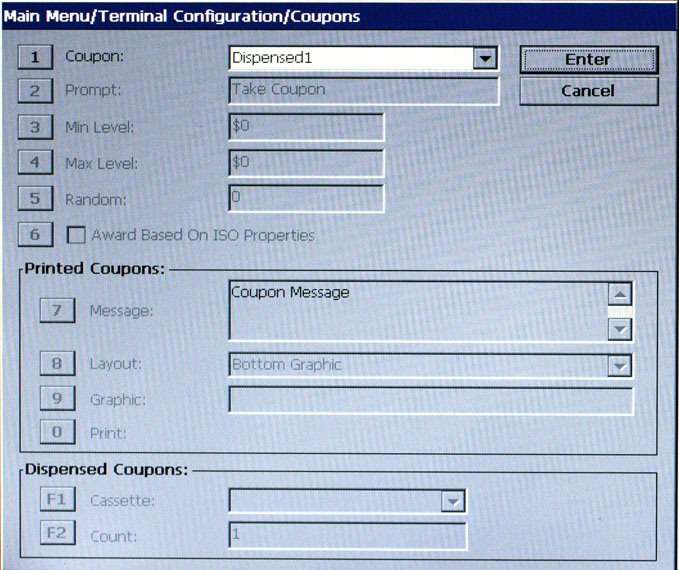
Press 1 to select appropriate Dispenser or Print option.
When Print is selected, options 2-0 are active.
When Dispenser is selected, options 2-6, F1 and F2 are active.
Coupons are used to notify customers of awards, prizes, other promotional sales. Coupons are presented to the customer in two (2) ways: PRINTED or DISPENSED.
Once a coupon type has been selected, set up parameters for the coupon:
2 Prompt - Description
This option displays a text entry dialog prompt. This dialog is for a brief message that appears on the customer screen to inform the customer that a coupon will be issued.
Enter a brief statement such as "Congratulations! You have won a prize coupon!"
Press ENTER when completed.
3 Min. Level - Description
This option sets the minimum withdrawal amount that will trigger printing or dispensing a coupon. If the customer withdraws an amount equal to or greater than this amount AND less than or equal to the maximum amount level, a coupon will be printed or dispensed (as applicable).
Enter the minimum withdrawal amount in the dialog prompt.
Press ENTER when completed.
4 Max. Level - Description
This option sets the maximum withdrawal amount that will trigger printing or dispensing a coupon. If the customer withdraws an amount equal to or greater than the minimum amount AND less than or equal to this amount level, a coupon will be printed or dispensed (as applicable).
Enter the maximum withdrawal amount in the dialog prompt.
Press ENTER when completed.
5 Random - Description
This option sets the frequency at which random prize coupons will be awarded (printed or dispensed, as applicable). The random coupon is won by a random number of transactions. For example, if the winning percentage (%) is set for 10, then 1 out of every 10 transactions will be awarded. The percentages can be set from 1% to 100%.
Enter the random percentage in the dialog prompt.
Press ENTER when completed.
6 Award Based On ISO Properties - Description
When this option is enabled (checked), the selected coupons are issued based on criteria configured in the ISO/Surcharge Properties option under Terminal Configurations.
Press 6 to toggle between enabled (checked) or disabled (unchecked).
7 Message - Description
The coupon message is a statement that appears on the coupon. The message describes the purpose of the coupon (discount, prize claim, etc).
Enter a descriptive narrative in the dialog box.
Press ENTER when completed.
8 Layout - Description
The layout parameter establishes the location of graphics on printed coupons.
The orientation can be set for either landscape or portrait. The available options are Top, Bottom, or Top and Bottom.
Top Graphic: The selected graphic is printed at the top of the designated receipt (450 x 225 pixels - .bmp).
Bottom Graphic: The selected graphic is printed at the bottom of the designated receipt (450 x 225 pixels - .bmp).
Top & Bottom Graphic: The selected graphic is printed at the top and bottom of the designated receipt (320 x 160 pixels - .bmp).
Press 8 to toggle through the available options.
Press ENTER when completed.
9 Graphic - Description
The coupon Browse dialog enables you to locate and select the graphic that will appear on printed coupons.
0 Print - Description
This option will print a sample coupon to verify the appearance of the message,
layout, and graphic (if used) of the printed coupon.
Press 0 to print a sample coupon.
F1 Cassette - Description
This option selects the cassette(s) that will dispense coupons.
Press F1 to cycle through the available cassettes.
Press ENTER when completed.
F2 Count - Description
This option enables you to set the number of coupons that will be dispensed for qualified transactions.
Press F2 to display a data entry dialog screen. Enter the number of coupons to dispense.
Press ENTER when completed.
Note: Press F8 to open a keyboard to assist in creating coupon messages.