
Follow instructions on the screen.
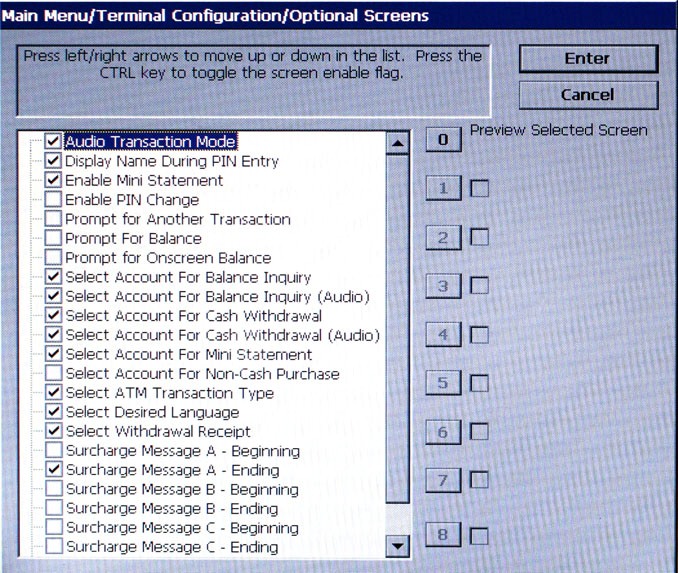
The Optional Screens function helps you customize the terminal by presenting only selected screens to your customers. Use this option to enable (checked) or disable (unchecked) the optional screens and to preview the selected screen.
The number and types of screens listed can vary depending on the country screen configuration file currently in use; however, the available screens will generally fall into the following categories:
Screens in this category are used to offer additional keypad-based audio-transaction accounts and transaction type selections to the customer, such as Balance Inquiries, Transfers, and Cash Withdrawals.
Processor requirements may dictate that a particular type of wording be used in the surcharge notification message presented to the customer. Screens in this category can offer a choice of surcharge message types from which you can choose the most appropriate for your locale. The location of the surcharge message in the transaction flow (Beginning or Ending) can also be selected.
Screens in this category offer the customer the opportunity to select a favored language in which to perform the transaction, such as Spanish or French. Both displayed and audio-based language selections are supported.
Screens in this category offer the customer the opportunity to choose whether to receive a printed receipt of their transaction or not.
Use the arrow (< and >) keys to scroll up/down through the available screen options.
Press the CTRL key to enable (checked) or disable (unchecked) the selected highlighted screen.
Press ENTER to accept.
To preview a screen, use the arrow keys to select a screen entry from the list.
Press 0 on the keypad to bring up the preview dialog box. The selected screen will be shown as it appears to the customer.
Press ENTER to return to the optional screen main menu.
NOTE: You may preview any optional screen whether enabled or disabled.
ADDITIONAL OPTIONS
Options one (1) through eight (8), if available, may be used to offer additional customer choices for the currently selected screen. The functions of these keys will depend on the purpose and design of the optional screen.