
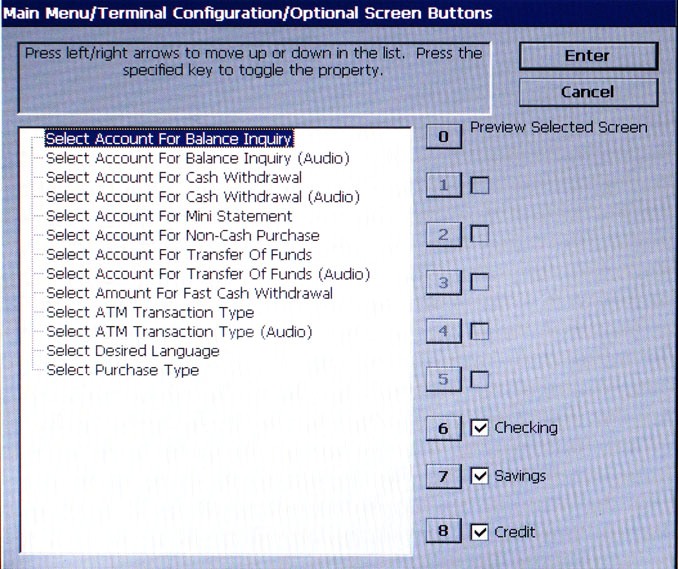
Follow instructions on the screen.
Properties will change depending on the file selected.
The Optional Screen Buttons function helps you customize the terminal by presenting only selected buttons for various customer screens. Use this option to enable (checked) or disable (unchecked) these buttons to the customer and to preview a selected screen button configuration.
NOTE: The numbers 1 through eight 8 correspond to the Function key options (1-4 left side of screen , 5-8 right side of screen).
The number and types of screens and associated option buttons can vary depending on the screen configuration file currently in use; however the available screen button choices will generally fall into the following categories:
Screens in this category are used to offer additional keypad-based audio-transaction accounts and transaction type selections to the customer, such as Balance Inquiries, Mini Statements, Transfers, and Cash Withdrawals. For each screen type, the available option buttons will be displayed/heard to the customer.
Screen buttons in this category offer the customer the convenience of choosing from a number of predefined withdrawal amounts rather then enter the value.
For applications in which non-cash items may be purchased from the terminal, screen buttons can be selected to provide the appropriate quantity/process to the customer.
Enabling/Disabling Optional Screen Buttons
Use the arrow (< and >) keys to scroll up/down through the available screen options. The button choices applicable to the screen will appear towards the right. Press the number on the keypad that corresponds to the button choice you wish to enable (checked) or disable (unchecked).
Press ENTER when completed.
To preview a screen button configuration, use the arrow (< and >) keys to select a screen entry from the list.
Press 0 on the keypad to bring up the preview dialog box. The selected screen will be shown as it appears to the customer with the selection buttons.
Press the ENTER key to return to the optional screen button main menu.